IT, Scala, Java, Web, Ubuntu

Category: Ubuntu Linux (Page 2 of 3)

Enabling Visual Effects in Ubuntu

Somebody asked a question regarding my video on youtube.
http://www.youtube.com/watch?v=TOp83ByFrMA

Unfortunately I don’t really have time to explain the details nor am I sure if Ubuntu supports his/her graphics card so I’m putting here some information which can be a starting point to get what he/she wants.

To enable some basic visual effects, select the ‘Appearance’ menu.
-System -> Preferences -> Appearance
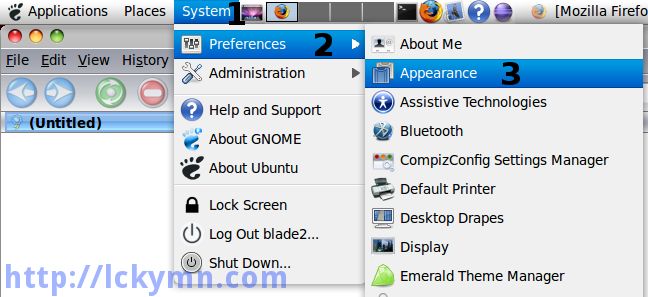
System -> Preferences -> Appearance

-Select the ‘Visual Effects’ tab -> Select the ‘Extra’ effect -> Click the ‘Close’ button.
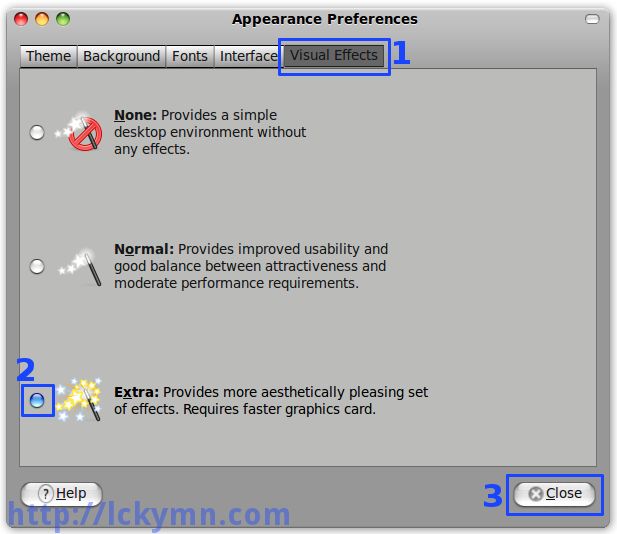
Select the 'Visual Effects' tab -> Select the 'Extra' effect -> Click the 'Close' button.
If Ubuntu or Compiz doesn’t support your graphics card, you may get some error message here.
If you are using ATI or nVidia Graphics card, I strongly recommend you to install EnvyNG which automatically checks what Graphics card you use and finds the proper driver for it. It only works for ATI and nVidia ones.  I am using Intel one so I cannot use it and therefore can’t explain how to use it.  To install it, open the ‘Synaptic Package Manager’
System -> Administration -> Synaptic Package Manager
and search by envyng then you can see ‘envyng-core’, ‘envyng-gtk’ and ‘envyng-qt’. Install envyng-gtk (I assume you’re using Ubuntu but not Kubuntu) and it will install envyng-core and envyng-gtk.

OK, get back to the visual effect one. After selecting the ‘Extra’ visual effect, it should have some visual effects and now it’s time to customise it to have more effects. If you have not installed ‘CompizConfig Setting Manager’ yet, install it first.

-Run ‘Add/Remove Applications’ -> 1. Make sure it shows ‘All available applications’ -> 2. Search ‘compiz’ -> 3. Check ‘Advanced Desktop Effects Settings (ccsm) -> 4. Click the ‘Apply Changes’ button.
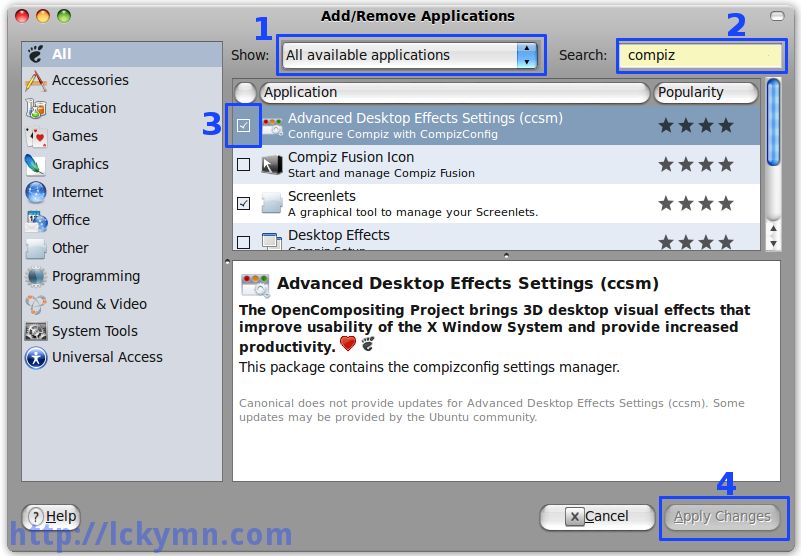
Run 'Add/Remove Applications' -> 1. Make sure it shows 'All available applications' -> 2. Search 'compiz' -> 3. Check 'Advanced Desktop Effects Settings (ccsm) -> 4. Click the 'Apply Changes' button.

Run the ‘CompizConfig Setting Manager’
-System -> Preferences -> CompizConfig Setting Manager
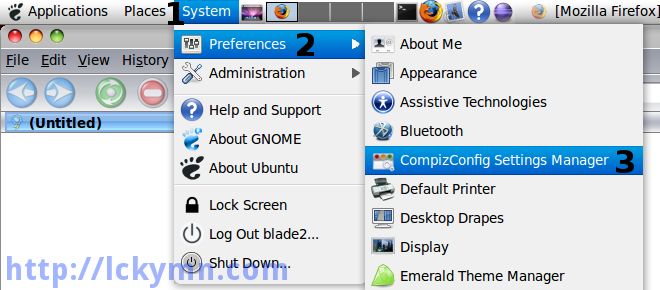
System -> Preferences -> CompizConfig Setting Manager

Now you can have whatever you want with Compiz-Fusion!
e.g.) To have the Cube, enable the ‘Desktop Cube’ and ‘Rotate Cube’
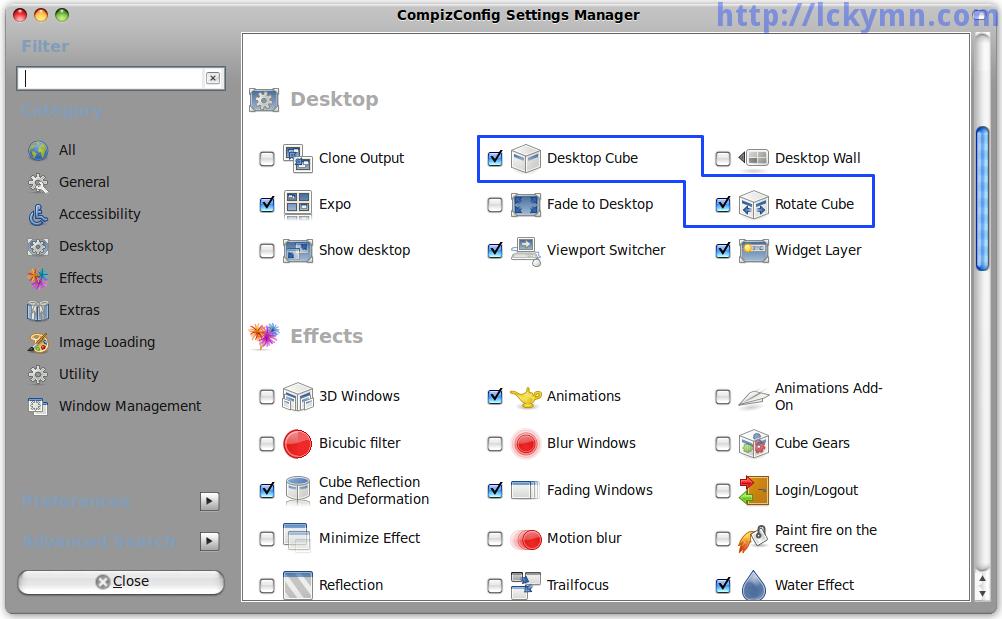
Do whatever you want!
Do whatever you want!

Enable Ctrl+Alt+Backspace Again

Ctrl+Alt+Backspace Disabled

As stated in the Ubuntu 9.04 release notes, Ctrl-Alt-Backspace key combination to restart Xorg is disabled.

Ctrl-Alt-Backspace disabled by default in Xorg

The Ctrl-Alt-Backspace key combination to force a restart of X is now disabled by default, to eliminate the problem of accidentally triggering the key combination. Users who do want this function can enable it in their xorg.conf, or by running the command dontzap --disable.

Enable Ctrl+Alt+Backspace Again

Ubuntu Linux 9.10 Karmic Koala

This part is added on the 23rd of November in 2009 as in the 9.10 version, enabling Ctrl+Alt+Backspace is different from doing it in the 9.04 version.
If you are using Ubuntu Linux 9.04 Jaunty Jackalope, please scroll down to skip this part then you can find one for Jaunty Jackalope.

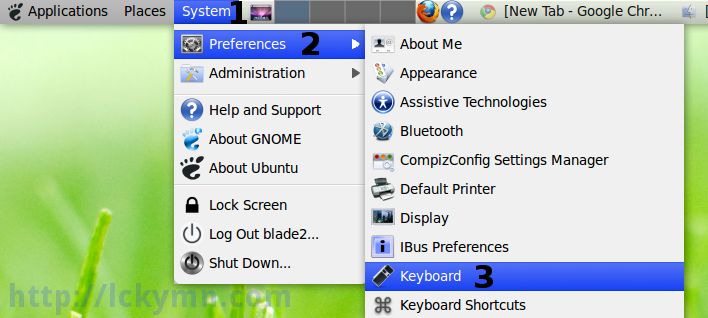
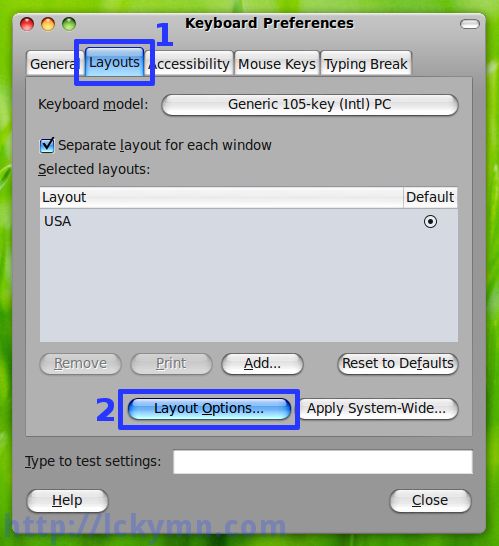
* System -> Preferences -> Keyboard

Select the 'Layouts' tab -> Click the 'Layout Options' button
* Select the ‘Layouts’ tab -> Click the ‘Layout Options’ button

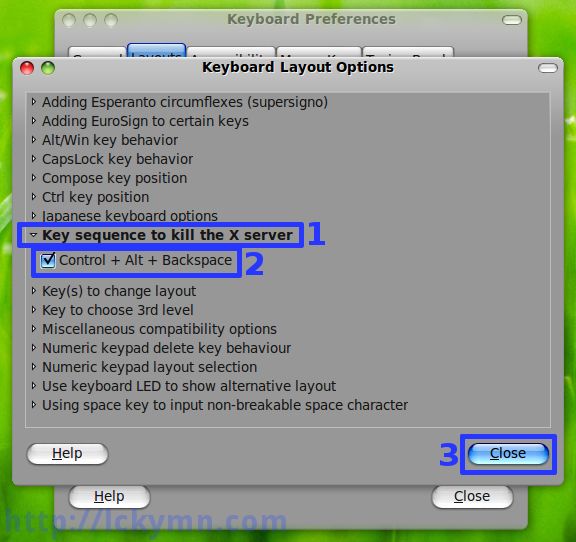
Click the 'Key sequence to kill the X server' to expand it -> Check the 'Control + Alt + Backspace' option -> Click the 'Close' button
* Click the ‘Key sequence to kill the X server’ to expand it -> Check the ‘Control + Alt + Backspace’ option -> Click the ‘Close’ button

Done!!!

Ubuntu Linux 9.04 Jaunty Jackalope

* Open the /etc/X11/xorg.conf file and add

Section "ServerFlags"
	Option	"DontZap"	"False"
EndSection

* Or simply use dontzap.
* If it is not installed already,

$ sudo apt-get install dontzap 

* Use the dontzap command to enable Ctrl+Alt+Backspace

$ sudo dontzap --disable 

This acually adds

Section "ServerFlags"
	Option	"DontZap"	"False"
EndSection

to the /etc/X11/xorg.conf file.

* After it is done, make sure to log out & in for the change to take effect.

* To enable the “DontZap” option again,

$ sudo dontzap --enable 

* More information about the DontZap option.

http://www.x.org/archive/X11R6.8.0/doc/xorg.conf.5.html#sect4

Option "DontZap" "boolean"

This disallows the use of the Ctrl+Alt+Backspace sequence. That sequence is normally used to terminate the Xorg server. When this option is enabled, that key sequence has no special meaning and is passed to clients. Default: off.

Change Back to Previous Update Notification

According to the Ubuntu 9.04 release notes, there is a change in the update notification.

Change in notifications of available updates

Ubuntu 9.04 introduces a change to the handling of package updates, launching update-manager directly instead of displaying a notification icon in the GNOME panel. Users will still be notified of security updates on a daily basis, but for updates that are not security-related, users will only be prompted once a week.

Users who wish to continue receiving update notifications in the previous manner can restore the earlier behavior using the following command:

gconftool -s --type bool /apps/update-notifier/auto_launch false 

As it says, this can be changed back to the previous style with the following command.

$ gconftool -s --type bool /apps/update-notifier/auto_launch false 

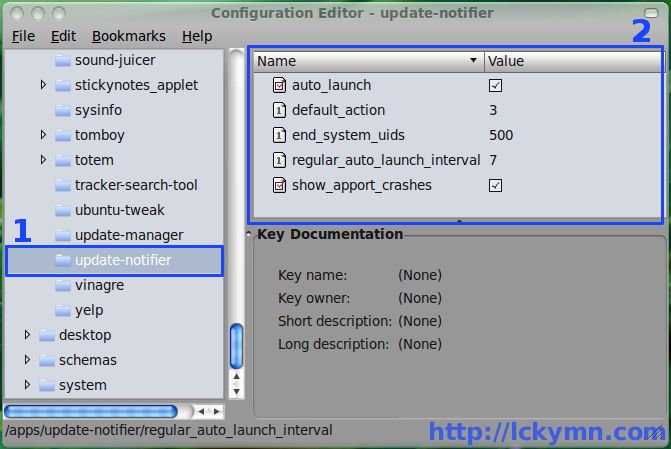
or through the Configuration Editor

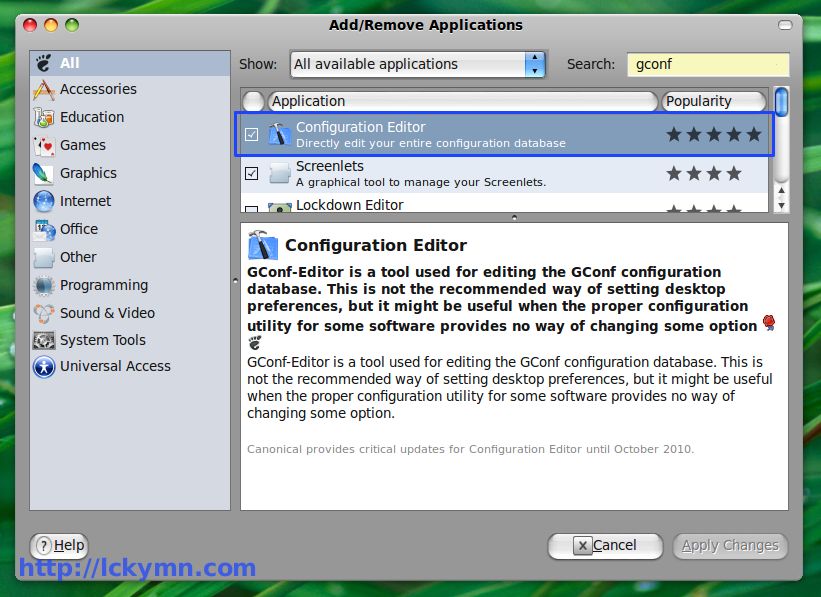
Install the Configuration Editor if it is not already installed.

Install the Configuration Editor if it is not already installed.


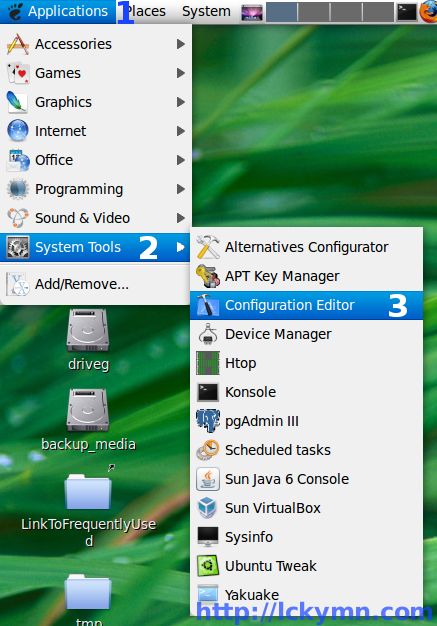
Open the Configuration Editor

Open the Configuration Editor
Applications -> System Tools -> Configuration Editor


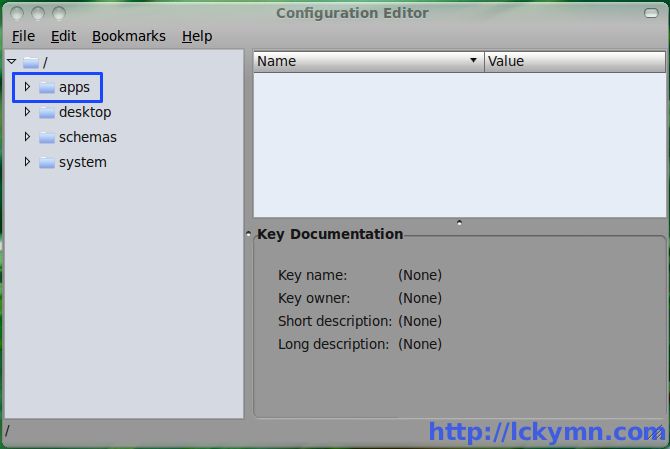
Expand <code>apps</code> category

Expand the apps category


Click the <code>update-notifier</code> to select it.

Click the update-notifier to select it.
The configuration details of it appears on the right hand side


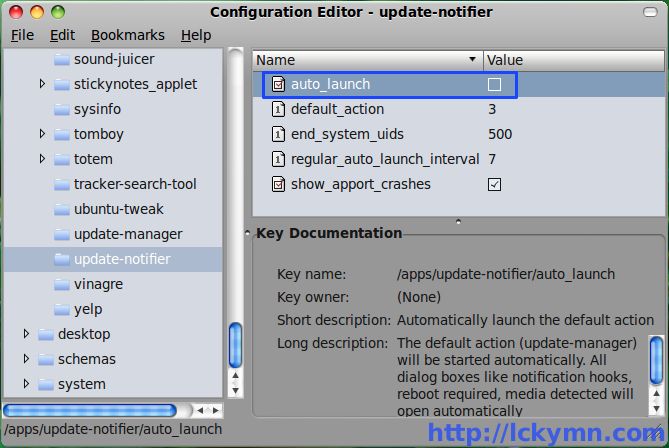
Uncheck the value of the <code>auto_launch</code> key.

Uncheck the value of the auto_launch key.
Close the Configuration Editor
* Optional: regular_auto_launch_interval can be changed for more or less frequent notification


Update Notifier will appear when there are available updates instead of the update manager directly launched.

Update Notifier will appear when there are available updates instead of the update manager directly launched.


« Older posts Newer posts »

© 2026 Kevin's Blog

Theme by Anders Noren — Up ↑